Most of the time I use my MacBook in a pretty plain way, without even noticing what's inconvenient about it. Every now and then someone shares the tools they use, I try a few of them out, and before long I've forgotten I ever installed them and I'm back to working the way I did before.
A while ago someone recommended Raycast, and I spent a fair amount of time setting up shortcuts for it—but as the tools I used changed, I gradually stopped reaching for it. These days I'm consciously trying to keep using a handful of shortcuts so I don't forget them.
Then it occurred to me to wonder whether there were tools that actually suited me. I went looking, found a lot of interesting ones, and installed a few that I'm still using. Some of them I use happily to this day; others I've already let go idle.
These are all well-known tools, but I want to introduce the ones I went and found and tried myself. Just like when I was using Raycast, laziness kept me from pushing any of them very hard—so read this as a light introduction rather than a deep dive.
BoringNotch
This is the tool I'm most satisfied with out of everything I'm currently using. It turns Apple's notch design into something dynamic: hover over it and the notch area expands, letting you check your configured playlist and calendar at a glance.

The Media section hooks into playlist apps like Now Playing, Apple Music, YouTube Music, and Melon so you can see what's currently playing. The Calendar section connects to both Mac Calendar and Google Calendar for a quick look at your schedule. I'm not really someone who listens to music while working, but I think I've been listening a bit more since installing BoringNotch.
The calendar is shown in a small area, but you can scroll from the nearest event through the later ones easily enough. Click the event area and it opens the calendar so you can check the details.

Hidden Bar
As AI tools piled up one by one, my menu bar filled with icons, and the urge to tidy it up kept growing. Someone had introduced me to a menu bar manager called Ice before, so I installed it and gave it a try—but certain menu items refused to hide. I poked at it from every angle and never managed to fix it, so I went looking for another menu bar hiding tool and came across Hidden Bar.
It doesn't support nearly as many features as Ice, but for someone who just wanted a tidy menu bar, that turned out to be plenty. No complicated features—just hide the items I don't need and bring them back when I do. I've been happy with it.

Supasidebar
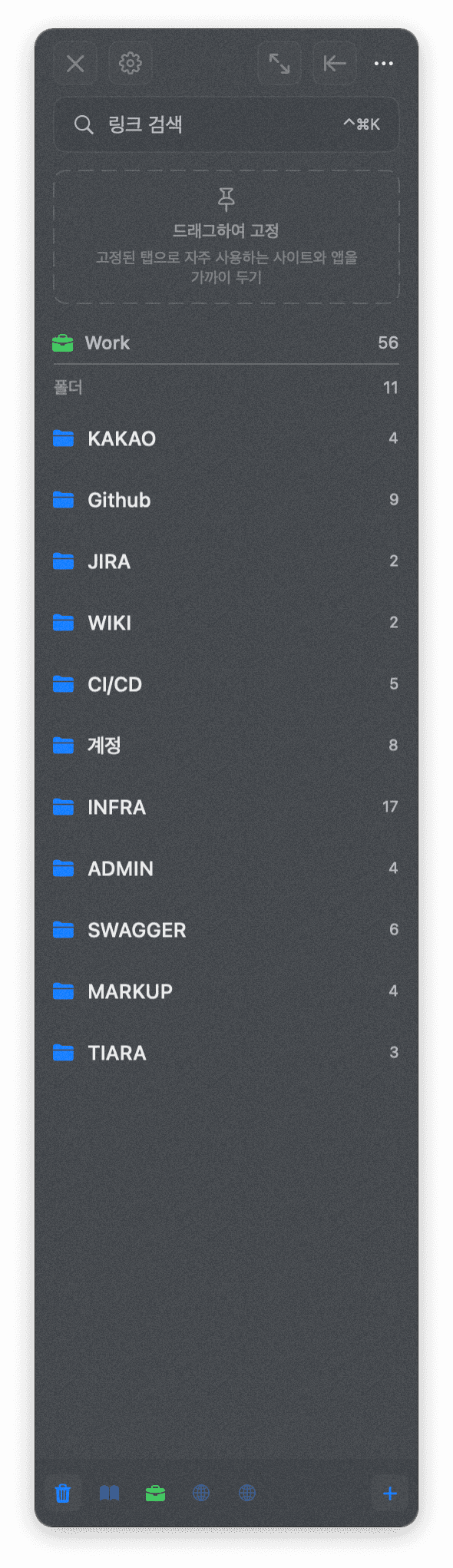
I used to use a browser called Arc. I really liked the way it managed tabs from the sidebar, and Supasidebar turned out to be a tool for managing bookmarks in an Arc-style sidebar.
As you can see in the image, you set up and manage bookmarks in the sidebar. What sets it apart from Chrome's built-in bookmarks is that bookmarks aren't split up by account—instead you organize them into "spaces" by purpose, like work and personal. You can also assign a keyword to each site so you can jump to it quickly.
On the AI side it can suggest tags and automatically group folders, though I haven't tried those yet.
Maybe it's because I only installed it recently, but I'm still too used to Chrome's tab groups to be getting much out of it.
Using a new tool comes down to getting used to it, in the end. Letting go of the way you've been doing things and learning how a new tool wants to be used takes a certain amount of effort too, I think.
Dropover
Next up is a tool that helps with copying and moving files. It doesn't come up as often as I expected, so I don't reach for it much, but I've kept it around figuring the day will come when it's genuinely useful.
If you've ever needed to move files on a Mac, you've probably opened several Finder windows and shuffled things between them. Dropover lets you park files in a temporary shelf and move them around comfortably.
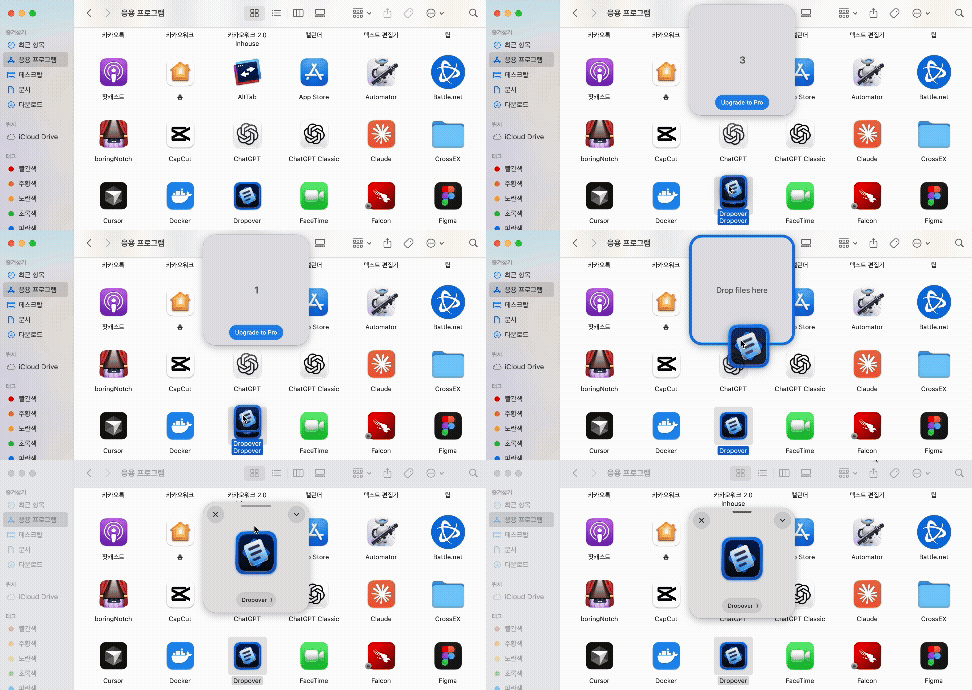
The disappointing part is that once the free trial ends, the shelf appears with a three-second countdown and you can't use it until those three seconds pass. I'm not fond of nudging people toward payment by making the tool annoying rather than simply limiting features—though I suppose I should be grateful it doesn't show ads.
It also offers a ⌥⇧Space shortcut to bring up the shelf in advance, and an ⌥⇧A shortcut that drops copied text into the shelf as a file. If I get used to those, I imagine it could be genuinely handy for moving files or stashing them temporarily.
The Mac Tools I Use
When I set out looking for tools, my thinking was that I'd fix the annoyances and get more efficient at work. But once I actually started using them, the fun turned out to be in the looking and the trying rather than in any efficiency gain. Like tidying a cluttered desk or rearranging the furniture at home, just installing and playing with a new tool was enough to shift my mood.
So the next time I need a change of pace, I'll go looking for new tools again, peek at what interesting ones other people are using, and rearrange my own setup with whatever fits.

"Sometimes just stepping outside the familiar is enough to start seeing things anew."